Manual install UXP plugin


This is a nerdy process, proceed with caution ⚠️
The newest versions of Photoshop use a plugin format called UXP. These plugins are typically installed with Adobe's UPIA installer –and the Overlord app uses this to install the Overlord Ps plugin.
We strongly suggest checking for Creative Cloud updates to try and install the Photoshop plugin normally. It allows Overlord to update the plugin whenever there are app updates.
If you do not have access to UPIA on your system, you will see a message in the Overlord app about installing it manually.
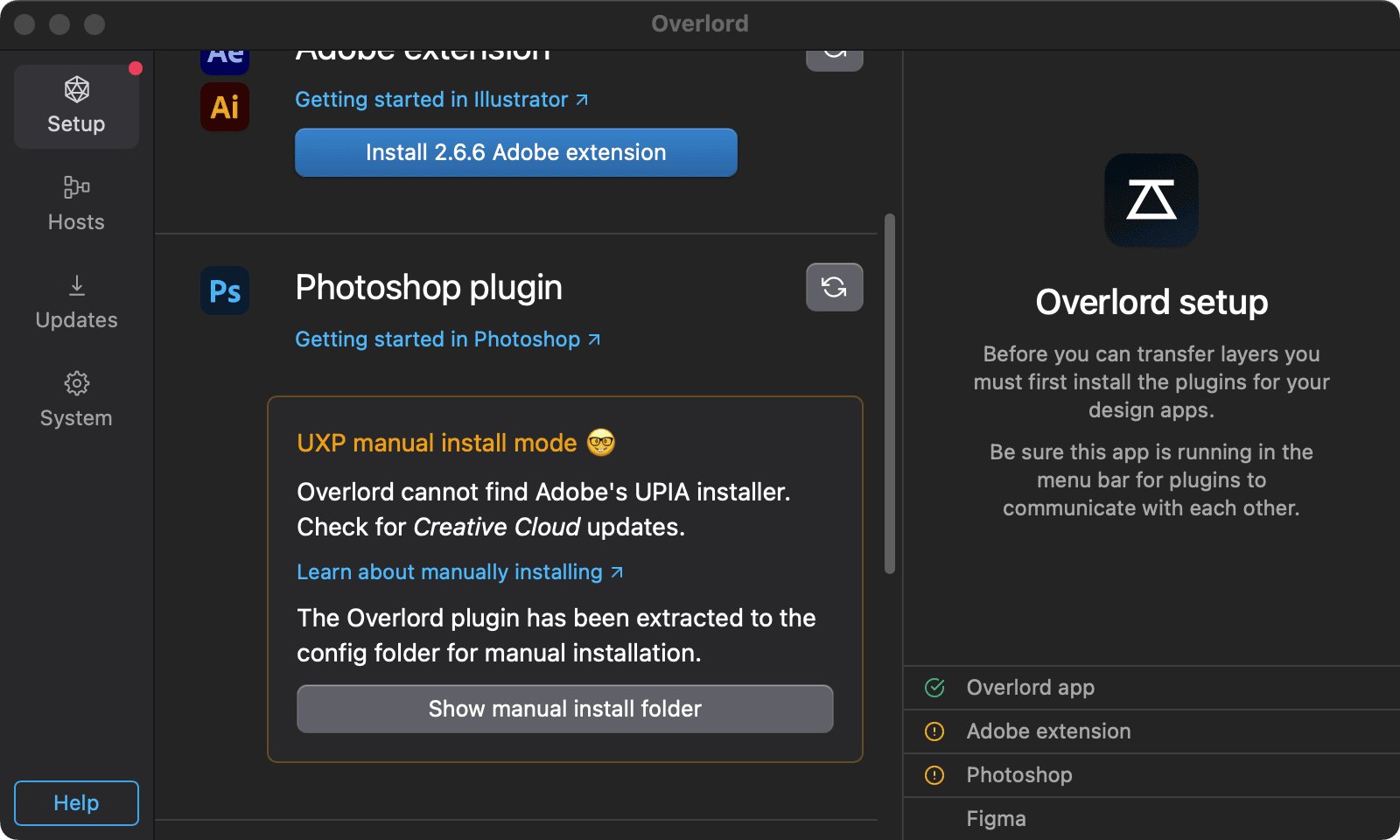
The UXP plugin folder has already been extracted to the Overlord config files. Click the button to show the manual install folder. Open another Finder or File Explorer window and navigate to your version of Photoshop, then the Plug-ins folder.
Windows:
C:\Program Files\Adobe\Adobe Photoshop 202x\Plug-insmacOS:
/Applications/Adobe Photoshop 202x/Plug-ins
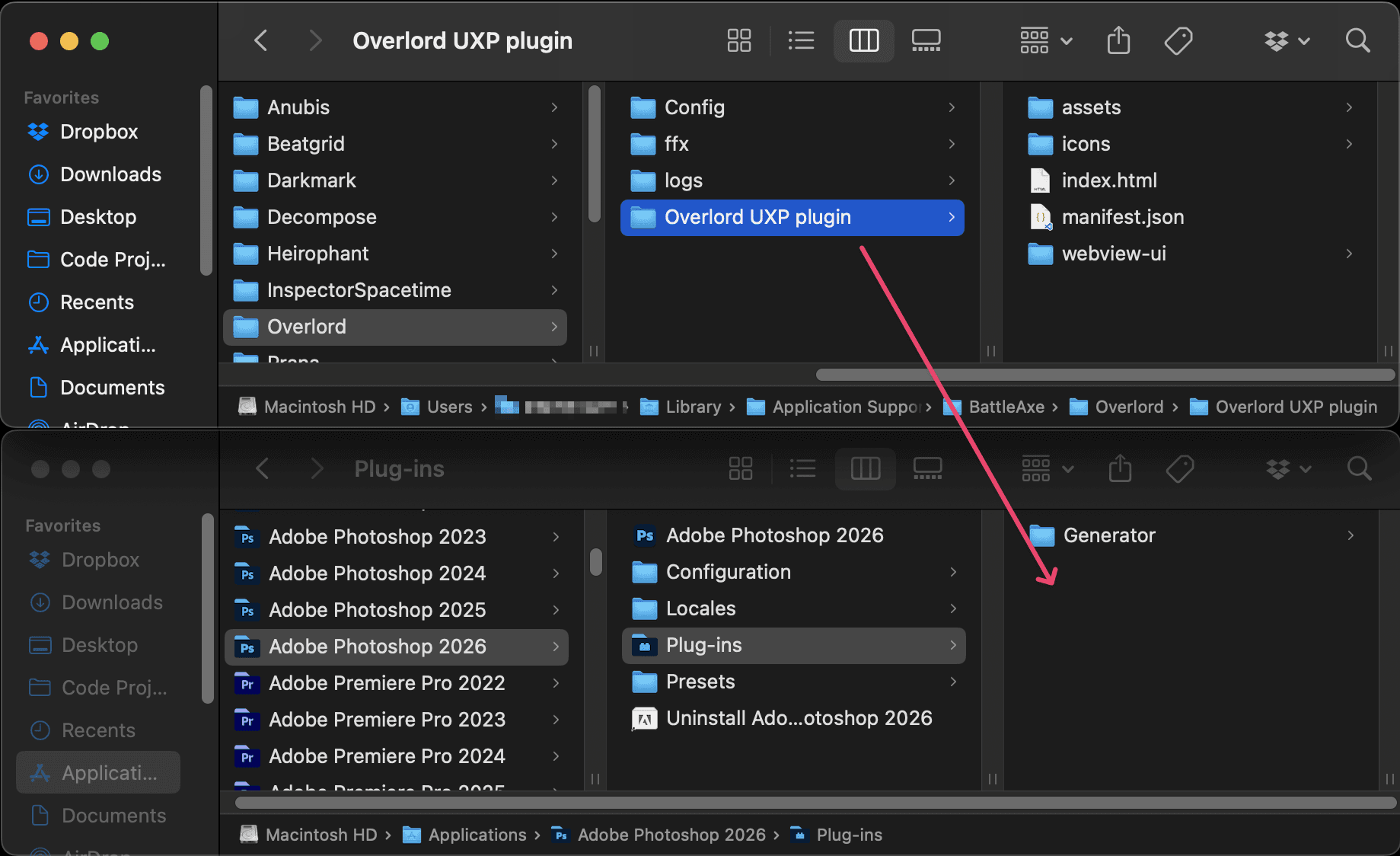
Copy the Overlord plugin folder into Photoshop Plug-ins folder. You might have to enter your user password to copy a folder into the applications folder.
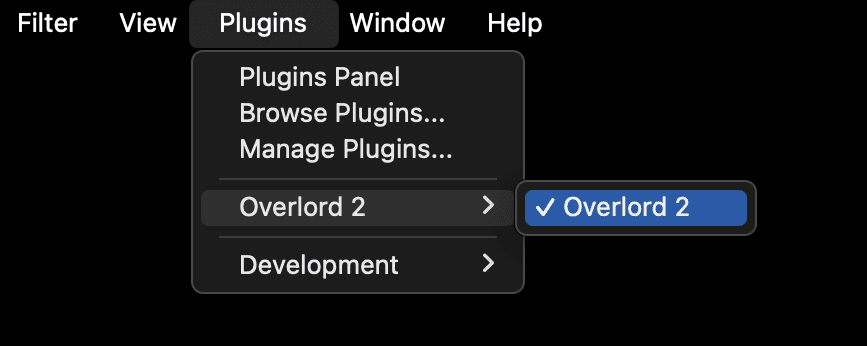
Now restart Photoshop. The Overlord plugin will now appear in the Plugins menu.
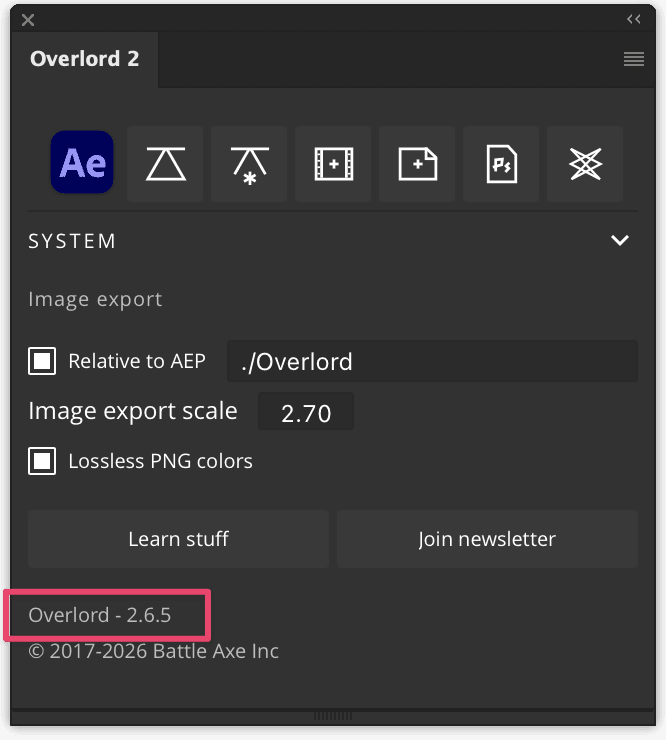
Remember, you will have to manually copy the UXP plugin for each new Overlord update. To view the installed Photoshop plugin version, twirl down SYSTEM within the panel.