Loading...
New in 2.6.0
The core mechanic of Overlord is moving layer into After Effects and the first button slot is dedicated to this action. While Photoshop can have text and shape layers, it is build around image layers, so take a minute to understand how relative image paths work with your project files.
From inside Photoshop, push selected layers to After Effects. From inside After Effects, pull selected layers from Photoshop.
Image layers must be saved to disk for Ae to import them. This folder path can be manually selected with each transfer, or automatically selected relative to the After Effects project file.
Enable this option in the Photoshop plugin panel and set the path within the After Effects extension panel.
The default path ./Overlord creates a new directory in the same folder as your current AEP to save files to.
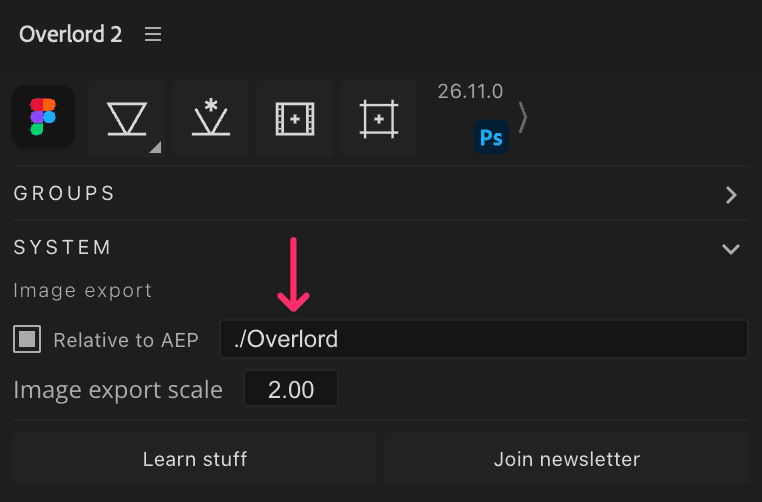
It is also possible to nest the Overlord folder deeper or higher than the AEP. Something like ../Assets/Overlord would save files up one folder from the Ae project and in a folder called Assets:
Starting in 2.6.5, Overlord will now down-sample higher bitrate image layers to 8bit (they looked really glitchy before this). This usually looks fine, but if you notice banding in gradients, enable Lossless PNG colors.
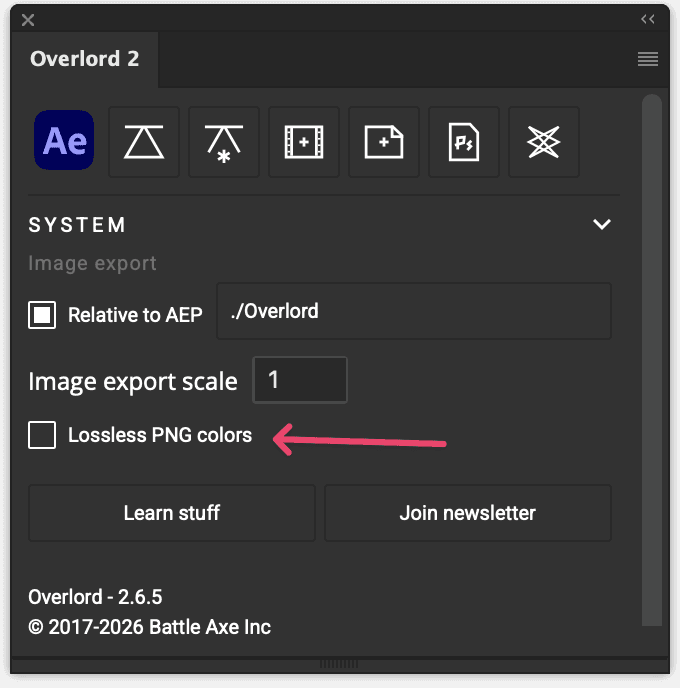
Note: it lossless colors will increase exported PNG file size compared to having it disabled. It also does not increase quality for all images. Use at your own discresion.
Why do i have to deal with this dumb stuff?
To make use of image transparency and decent file size, Overlord exports PNG images, and PNGs only support 8 bits per channel. PSD documents can create and mix higher bitrates, but the benefits are typically in the mixture of colors rather than the colors themselves. If you don't know about making use of a linear color workspace, then you probably don't need to worry about it.
Learn more about 32 bit color in Ae →
If you have a really specific workflow that requires 16 or 32 bit images we would love to hear about it. Send us a message.
Image layers
Exported to disk as PNG files based on the image path preference ↓
Text layers
With per-character text styling
If the PSD contains a font that is not installed, the layer will be exported as an image layer
Grouped layers
created as an invisible shape layer and all child layers parented to it
Nested groups will be parented to the above group
Adjustment layers
Created as Ae shape layers
We at Battle Axe do not care for solid layers, so we create all these invisible layers with shapes. See Void for more on that.
Solid color and gradient layers
Created as Ae shape layers
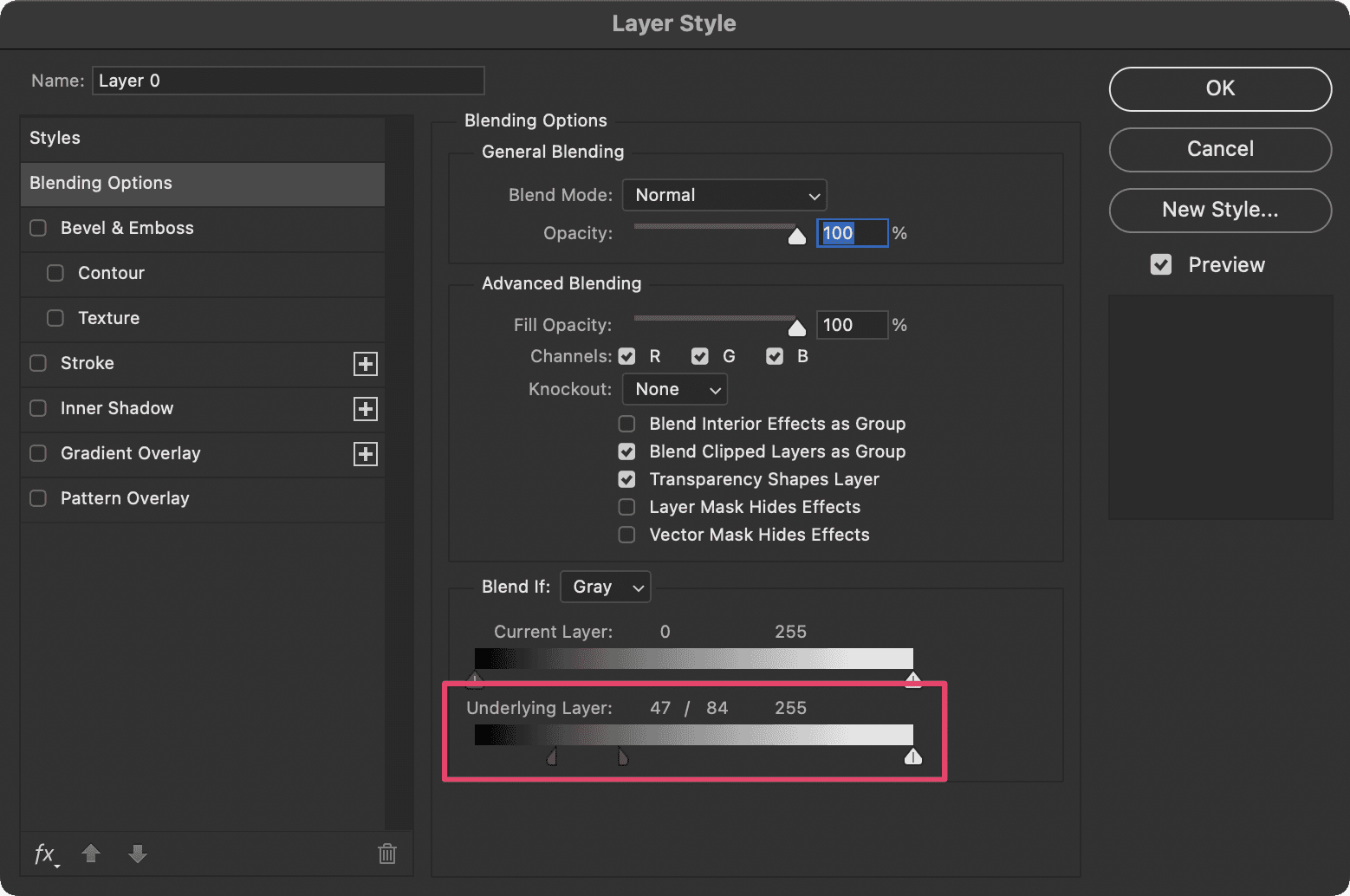
Blend If: Underlying Layer
This mode adjust how a layer blends with the layer(s) below it. Unfortunately, After Effects does not have this option for blending.
Current Layer is supported but it adjust the alpha channel of the exported PNG
Respect the artboard
Not every designer uses artboards in Photoshop, but if your team does, then you've probably run into the issue where importing a PSD into Ae throws out all the artboards edges and flattens all the layers within a giant Ae comp.
Nobody wants that.
Overlord knows which artboard your active layers are inside, and all the actions work within that artboard to make your life easier.
Quickly convert a collection of selected layers into a single PNG layer. Behind the scenes, Overlord will:
Group the selected layers
Flatten the group into a layer
Transfer it to Ae
Undo the process back to your original layers

Gets the Ps document or current artboard sizing, then builds a new comp in Ae with matching dimensions.

Gets the current Ae comp sizing and builds a:
New Ps artboard with matching dimensions if a document is open
Creates a new document with matching dimensions if Ps is open without a document
Builds all horizontal and vertical Ps guides inside of Ae.

Your project might not need to have a bunch of layers exported out to Ae. Maybe you just want your open PSD imported into Ae and you don't want to dig for the file and pick settings.
The open Photoshop file will be imported into Ae with the settings:
Composition - Retain Layer Sizes
Editable Layer Styles
So what's the point of Overlord?
Yep, importing a PSD is much faster than generating PNGs for ever layer, and there are projects where this might be the best workflow, so use it when it makes sense.
The important thing to remember is that after you import a PSD into Ae:
if you make any change to the Photoshop layer count you have to reimport the PSD to get those layers
any keyframes you added will be on the first set of imported layers
you have to manage the multiple sets of imported Ps layers in the Ae project panel
Transferring what you need as you need it is the Photoshop × Overlord super power. 💪🏼